The baseline assumption
If a phone, laptop, or account was issued by your employer, or is enrolled in your employer’s management system, treat it as employer territory. That’s not paranoia — it’s how the tools are built. The question isn’t really “can my employer see this,” it’s “how much,” and the answer depends on what kind of device you’re holding and what account you’re signed into.
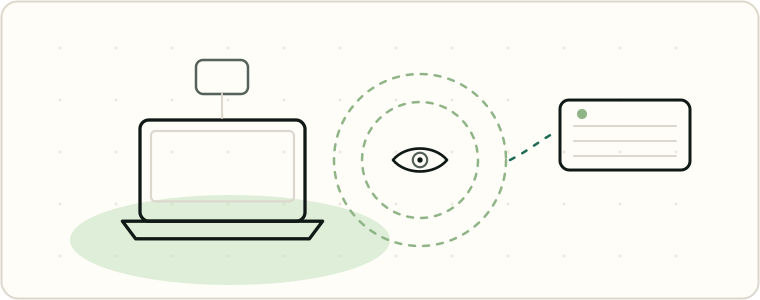
This is a different threat model than a personal phone with spyware on it: device management and corporate email administration are normal, disclosed parts of running a business. This guide is about knowing where the line falls, not treating IT as an adversary.
Company-owned phones: assume the organization controls the device
A phone your employer bought and set up before handing it to you is commonly enrolled as supervised through mobile device management (MDM), typically via Apple’s Automated Device Enrollment or its Android equivalent — though supervision depends on the enrollment method IT chose, not on who paid for the phone. Apple’s deployment documentation says supervision “generally denotes that the device is owned by the organization, which provides additional control over its configuration and restrictions,” and on a supervised device the organization “can monitor your internet traffic” and “locate this device” (Apple Platform Deployment).
Apple’s enrollment comparison table shows what that adds up to: supervised, Automated-Device-Enrollment devices get the full range of enforceable restrictions — requiring a passcode, installing and configuring managed apps, configuring a VPN, and turning on Managed Lost Mode — versus a smaller set on personal, account-driven enrollments (Apple Platform Deployment — Enrollment methods; full breakdown in Configuration profiles and MDM). Be precise here: the MDM protocol itself can’t read personal email, messages, or browser history — but a supervised, company-owned device doesn’t need that to be controlled. It can get a managed content filter, a device-wide or per-app VPN that inspects network traffic, pushed or removed apps and accounts, and Managed Lost Mode. So on a company phone IT set up before you touched it, assume the organization controls the device and can observe your network activity, even where it can’t open specific personal content.
BYOD and Android work profiles: what stays separate
If you use your own phone for work through a bring-your-own-device (BYOD) program, the picture is more contained — but only within the boundary the platform draws.
On Android, work accounts typically live inside a work profile, a separate container from your personal side. Google states this directly: “If your device has a Work Profile, your organization can view and manage your work apps and data. Your personal apps, data, and usage details aren’t visible or accessible to your organization” (Google Support). That’s a real boundary — but if the phone itself is company-owned, the organization can also manage some device-wide settings like time, date, language, or Wi-Fi configuration, on top of the work profile (same source). Check for a work profile under Settings → Passwords and accounts — a “Work” tab appears if one is present (Google Support).
On iPhone, Apple’s equivalent is User Enrollment, which confines management to a separate, cryptographically isolated volume: “IT can enforce only specific settings, monitor corporate compliance, and remove only corporate data and apps. IT teams can’t remotely wipe a device, access device location, or access personal information or apps on the device” (Apple, Managing Devices and Corporate Data). More broadly, Apple says “regardless of your deployment model, the MDM framework can never access personal information, including email, messages, and browser history,” and “MDM functions are limited on personal devices” (same source) — a protocol-level limit that applies most fully on a personal, User-Enrolled device, not a supervised company phone with a content filter, VPN, and Managed Lost Mode already on it.
The takeaway: BYOD containment protects your personal side of the phone, not what you do inside the work account itself. Anything in the managed container, including a work email or chat app, is still subject to everything below.
Your work email and chat account is a different story entirely
Regardless of the device, once you’re signed into a corporate Microsoft 365 or Google Workspace account, the account itself — not just the device — carries deep administrative visibility, and it’s designed to.
Microsoft 365. Administrators can use Microsoft Purview eDiscovery to “identify, review, and manage content” across Exchange Online mailboxes, Microsoft Teams, OneDrive, SharePoint, and other Microsoft 365 services, and to search mailboxes and export the results (Microsoft Purview). It isn’t available to just anyone with an admin login: Microsoft gates it with role-based access control (“use role-based access control (RBAC) permissions to control what eDiscovery-related tasks that different users can perform”), case-level access limited to assigned members, and some features requiring an Office 365 or Microsoft 365 E5 subscription or add-on (same source). It’s a standard admin/compliance tool, most often invoked for legal holds, HR investigations, or security incidents, and Microsoft’s own guidance walks through searching a specific user’s mailbox for a date range and keyword (Microsoft Purview — Finding content in mailboxes). The capability exists for whoever holds the eDiscovery manager or Administrator role and the right license, and using it doesn’t require your knowledge or consent.
Google Workspace. A similar pattern holds, with its own licensing gate. Google Vault, Workspace’s retention and eDiscovery tool, lets administrators “retain, hold, search, and export” Workspace data — including Gmail messages, Drive files, Calendar events, Meet recordings, and “Google Chat messages (when conversation history is turned on)” (Google Vault Help). Vault only covers users and admins with an actual Vault license: “Only users with Vault licenses assigned to them are covered by Vault. Only admins with Vault licenses are able to use Vault” (same source). Separately, Workspace’s Moderation Tool lets an admin “review and act on content intercepted or reported” in Gmail and Chat, including quarantining flagged messages (Google Workspace Admin Help). As with Microsoft, this is standard enterprise infrastructure — but a work Gmail or Chat account isn’t a private messaging channel the way a personal account might feel like one.
Office Wi-Fi and company networks
Separately from account-level access, the network your work device connects to can add another layer of visibility. Some organizations use HTTPS interception, where a certificate installed on the device lets a security tool decrypt and inspect traffic before re-encrypting it — well beyond what a home router owner can see. What the Wi-Fi owner can see covers this in depth, including why it depends on a certificate installed on the device itself, not just being on the network.
Notice laws exist, but don’t count on one nationally
Some states require employers to disclose electronic monitoring before doing it. New York is the clearest example: its civil rights law requires that “any employer who monitors or otherwise intercepts telephone conversations or transmissions, electronic mail or transmissions, or internet access or usage of or by an employee by any electronic device or system… shall give prior written notice upon hiring to all employees who are subject to electronic monitoring,” acknowledged by the employee, plus a posted notice in a visible workplace location (New York Civil Rights Law § 52-c). It applies to “any individual, corporation, partnership, firm, or association with a place of business in the state,” excluding “the state or any political subdivision of the state” (same source). The attorney general enforces it, and a violation carries “a maximum civil penalty of five hundred dollars for the first offense, one thousand dollars for the second offense and three thousand dollars for the third and each subsequent offense” — $500 is a ceiling for a first violation, not a floor (same source). It also exempts monitoring aimed at managing mail or internet volume generally, rather than targeting a specific individual, done solely for system maintenance or protection (same source).
That’s one state’s law. Requirements vary significantly by state, and some states have no such notice requirement at all — check your own state’s labor department or attorney general’s office rather than assuming New York’s rule travels with you.
When your boss is also your abuser
If the person monitoring your work device or account is also your abuser — a controlling partner who owns the business, a spouse who’s also your manager, or family running a company you work for — the framework above stops being “routine IT” and becomes a way to control you specifically. Admin access to your email, chat logs, and location through a company phone is not hypothetical there; it’s a tool already in their hands. Read Safety first: before you remove anything before changing anything on a work device or account — altering settings can alert them immediately, and may not free you from a device that’s contractually theirs to control. If you’re separating your personal life from a shared or monitored phone more broadly, Starting over: setting up a new phone clean covers building a separate, un-linked device.
The practical rule
Keep personal accounts, personal searches, safety planning, and anything you wouldn’t want an employer to see entirely off work devices and work accounts — not because you’re doing anything wrong, but because the visibility above is real, disclosed, and by design. Use a personal phone on a personal account, on your own network, for anything personal.